
Manage Project Group
Project Group
Overview
Page navigation — Go to Company → Project Groups or select a Project group from the All projects dropdown in the left menu.
Project groups are logical containers that bring together multiple projects, users, and connected providers within your company.
When you create projects, they are always associated with a Project group. This ensures that services, costs, and permissions are tracked and managed consistently. A Company can have many Project groups, and each Project group can contain multiple projects.
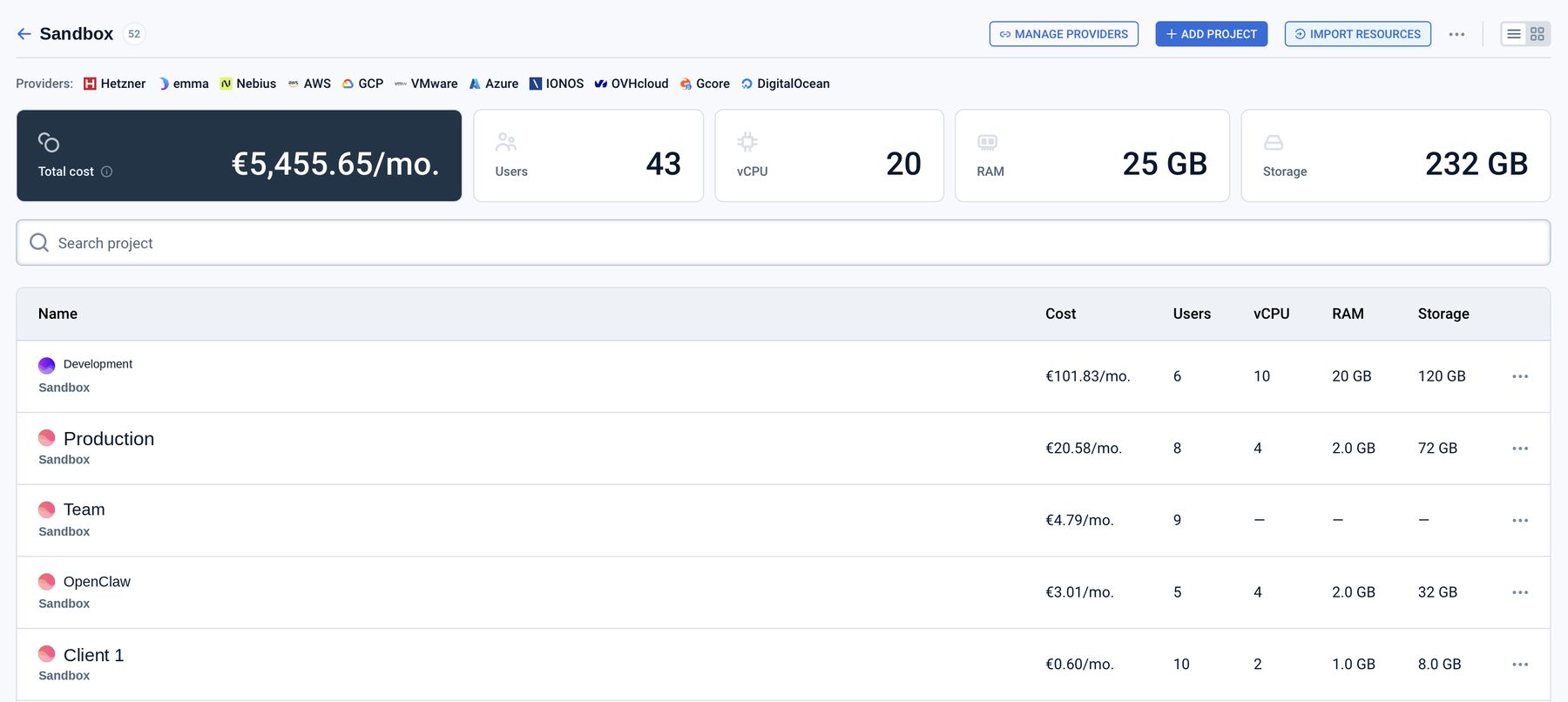
- Project group details – Project group name.
- Connected providers – list of cloud providers linked to the Project group.
- Summary of resources – monthly cost across all projects in the Project group, number of users who have access to at least one project in this Project group, vCPUs, RAM and storage.
- Projects in this group – list of all projects with their key parameters (Cost, number of users, vCPUs, RAM, storage).
Analytics on page
The Project group dashboard provides both graphical and quantitative insights into the resources and costs of all projects within the Project group.
Here’s what you can see:
- Total cost of all projects in the Project group.
- Resource usage: CPU, RAM, and storage aggregated across all projects.
- Breakdown of costs by project.
- Project association: Every project clearly shows which Project group it belongs to.
Actions you can perform on this page
From the Project group page, you can:
- Create a new Project – opens a composer with project creation.
- Edit Project group – change the group's name and description. A renamed group is visible under the new name to everyone with access to it.
- Delete Project group – permanently removes the group and all its projects. This action is irreversible.
- Deletion is blocked while any project in the group still has active resources. You'll see which projects to clear first.
- Networks are not part of that check: they live at the Project group level, so remove them yourself before deleting.
- Billing for external apps can take up to 4 days to update after deletion. To stop it sooner, delete those apps in your provider console.
- Delete a project in Project group – available only when the project has no active resources.
- Open project dashboards – click a project name in the Project group table to view its dashboard and settings.
- Manage providers – opens the Connect providers page: check which cloud providers are linked to the Project group.
- Import resources – opens the Discover and import resources flow: scan a connected provider account for existing (brownfield) resources and bring the ones you choose under emma management.
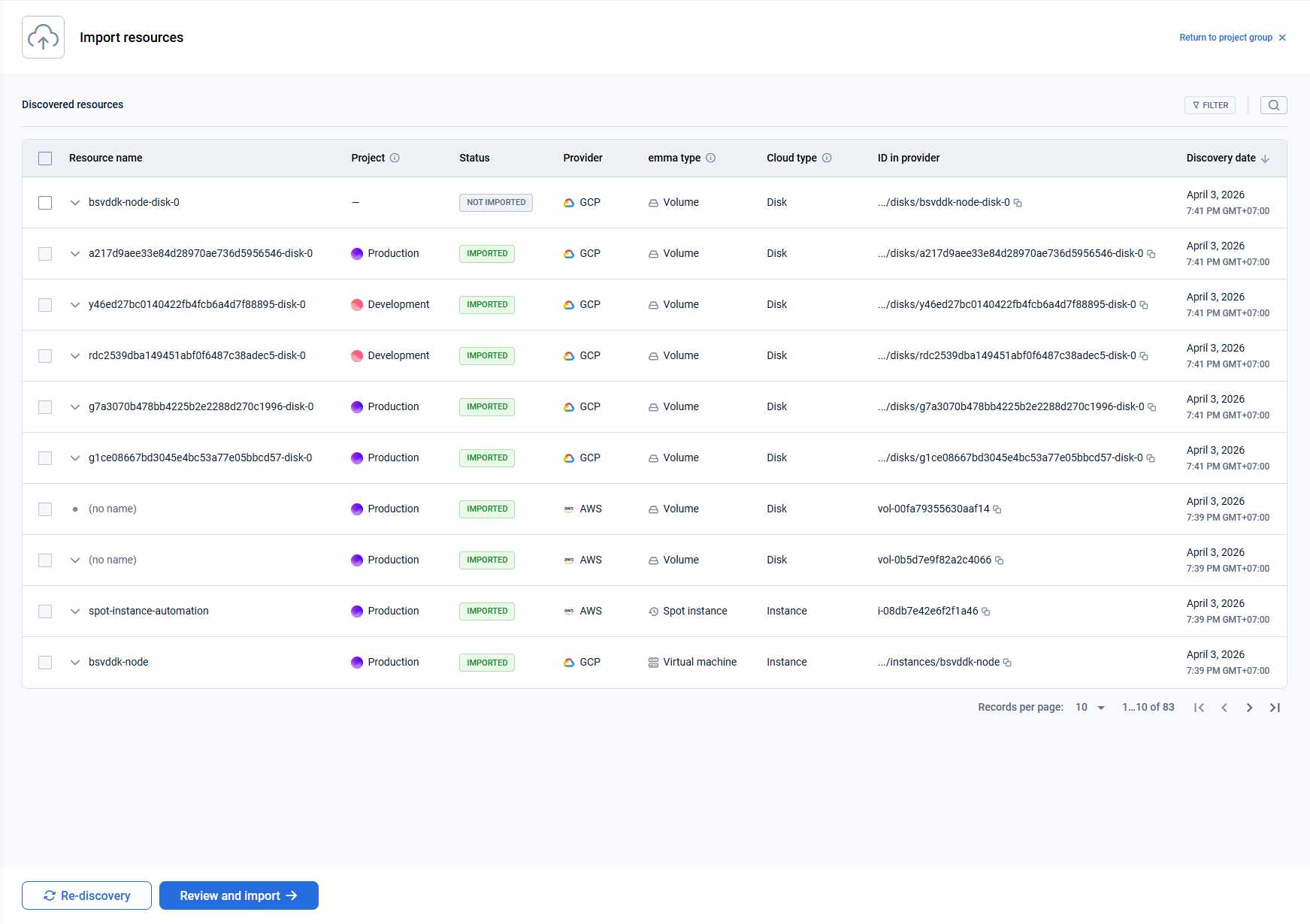
- Start discovery / Re-discovery – scans the selected provider(s) for existing resources; takes up to 30 minutes, and importing stays disabled until it finishes.
- Review and import – select discovered resources, assign each one to a project, and confirm the import. See Discover and import resources for the full walkthrough and resource statuses.
- Important: Any changes to settings such as External Services, Quotas, or Network at the Project group level will affect all projects in that Project Group, not just one project. Yellow info boxes on those pages include a link back to the PG for clarity.
Last updated on 24 Aug 2026