
Edit budget
Overview
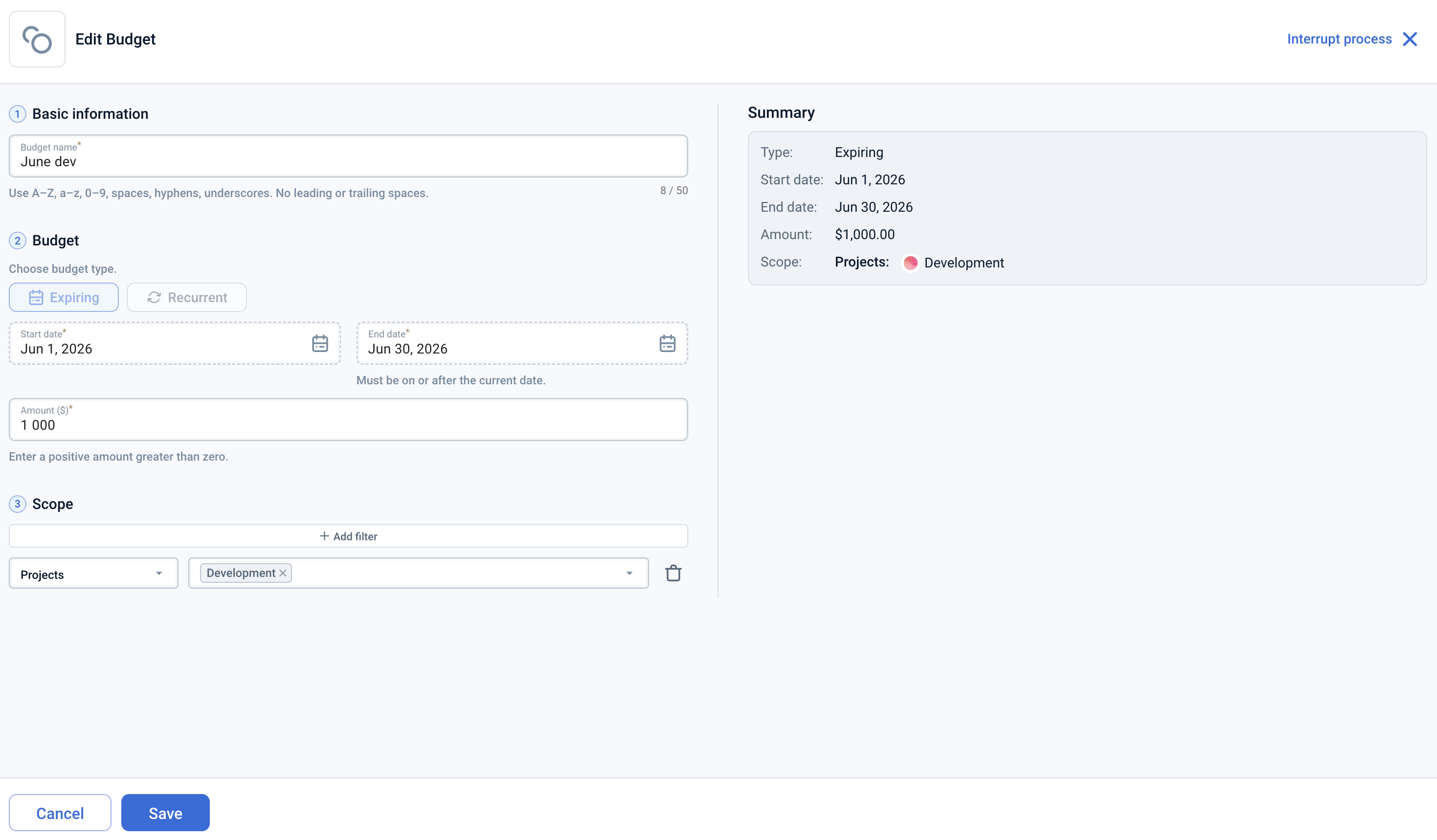
The Edit budget form lets you update an existing budget's name, scope, end date, or spending limit. Open it by selecting Edit from the context menu on a budget row on the Budgets page, or by clicking Edit on the Budget card.
To edit a budget, you need the Access FinOps management permission and access to all projects covered by the budget's scope.
Content on this page
The form opens with all fields pre-filled from the current budget settings. Some fields are locked and cannot be changed after a budget is created.
- Name — The budget's name. Can be changed.
- Type — The budget type (Expiring or Recurrent). Cannot be changed.
- Period — Visible only for recurrent budgets. Shows the reset schedule (Monthly, Quarterly, or Yearly). Cannot be changed.
- Start date — For expiring budgets: can be changed; must remain before the end date. For recurrent budgets: cannot be changed.
- End date — Visible only for expiring budgets. Can be changed; must be on or after the current date and later than the start date.
- Budget amount — The spending limit for this budget. Can be changed.
- Scope — Filters that define which cloud costs are tracked. You can add or remove filters for:
- Projects — visible at company level only.
- Services
- Cloud providers
- Locations
- Data sources — visible at company level only. Filters by billing origin: the built-in emma source (your emma-provisioned resources) or an external cloud billing account (AWS, Azure, or GCP) connected on the Import page.
Actions that you can perform on this page
- Save the changes — Click Save to apply your changes. The button is disabled if any field fails validation.
- Cancel — Click Cancel or close the form to discard changes and return to where you opened the form.
How is this guide?
Last updated on 12 Aug 2026