
Restore a workflow version
Roll a workflow back to an earlier snapshot by creating a new active version from it — what is restored, what is not, and what stays untouched.
Overview
Restoring a workflow version rolls the workflow back to a previous configuration by creating a new active version from the selected version's snapshot. The original version remains unchanged in the version history and can be restored again later if needed.
Restored versions are marked with the ↩ Restored from icon in the version list; its tooltip names the source version, for example Restored from v3. See Workflow versions for the version list itself.
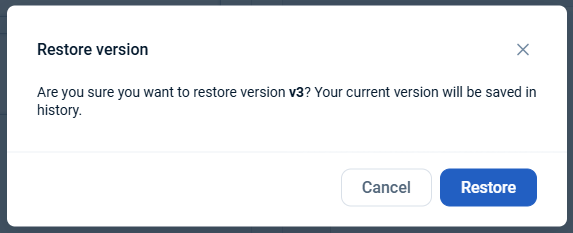
To start a restore, open Version history on the Edit Workflow page and click Restore — either on the version's card in the list, or in the header while you are viewing that version. emma asks for confirmation and reminds you that the version currently active is kept in history.
What is restored
When you restore a version:
- A new active version is created from the selected version.
- The workflow status (
PUBLISHEDorUNPUBLISHED) is restored from the selected version.
Special case. Because restoring creates a new version, restoring while the workflow already holds 20 versions asks you to confirm deleting the oldest non-active version. If the version you are restoring is itself the oldest non-active version, that deletion is not possible — emma cannot delete the version you are trying to restore. Delete another version you no longer need yourself, then retry the restore.
What is not restored
- Default values of secret parameters. They must be entered again.
- Tags that have been deleted from your company.
What restore does not affect
Restoring a workflow version does not:
- Modify or remove existing workflow versions.
- Affect VMs or spot instances that were deployed from previous workflow versions. They remain associated with the workflow version from which they were originally created.
Last updated on 20 Aug 2026