
Workflow versions
Immutable save history of a workflow — what a version holds, which one is active, and how to view, rename, or delete versions.
Overview
Every workflow keeps an immutable history of the states it has been saved in. Each save (Save as Draft or Publish) that changes the workflow content creates a new version — a full, read-only snapshot of the workflow's script, parameters, tags, and metadata. Saves without changes do not create a new version.
One version is always the active version: it is the one used when the workflow is deployed, edited, or duplicated.
Page navigation — open the workflow for editing and click Version history in the header of the Edit Workflow page. The button carries the number of versions the workflow currently holds.
Versioning lets you:
- Compare and audit changes over time.
- Restore an earlier working state if a recent edit introduced a problem.
- See exactly which version any deployed VM or spot instance was created from.
A workflow can hold up to 20 versions. Once the limit is reached, saving or restoring asks you to confirm deleting the oldest non-active version.
Information on this page
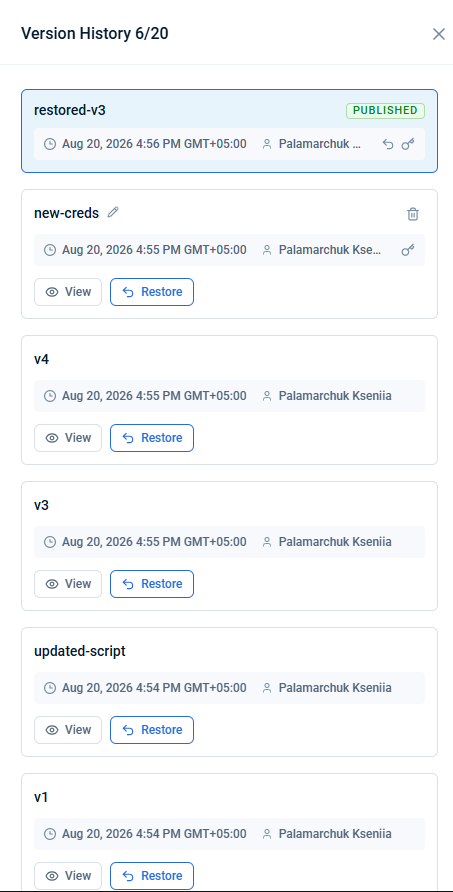
The Version History side panel shows the full history:
- Version count — in the panel header, for example
Version History 6/20. - Version list (up to 20 cards) — sorted by creation date, newest first. Each card contains:
- Name — either the server-generated default (
v1,v2, and so on) or a custom name you assigned. - Created — date, time, and the user or service app that saved this version.
- Secrets changed icon — indicates that this version's secret parameter values differ from the previous version (a secret was added, removed, or its value changed). Other attributes may have changed too.
- Restored from icon (↩) — shown when this version was created by restoring another version. Its tooltip names the source version, for example
Restored from v3.
- Name — either the server-generated default (
The active version, the one currently used for deployment, is highlighted in light blue.
Actions you can perform on this page
View a version
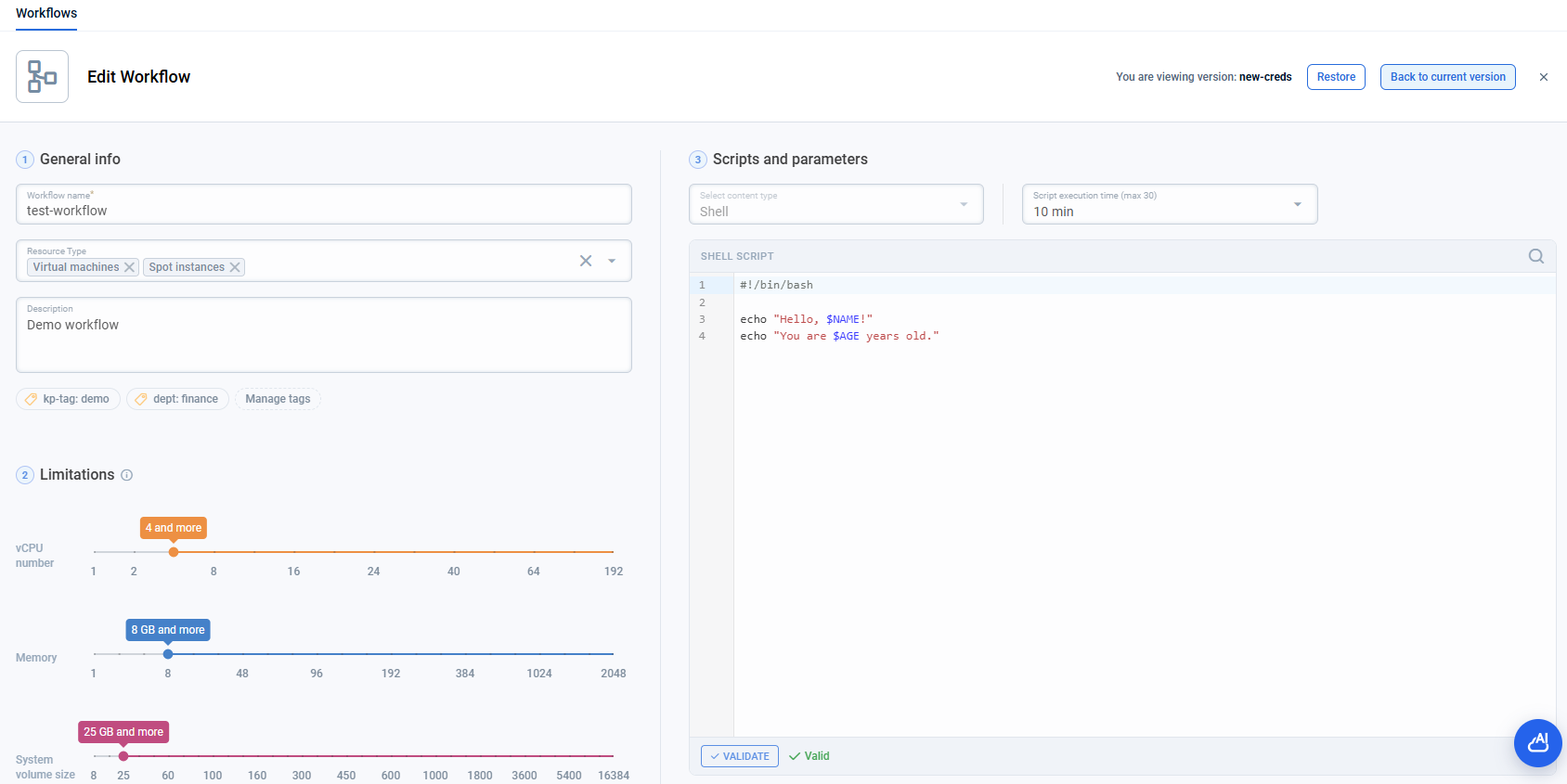
Click View on a version card. The workflow opens read-only, with You are viewing version and the version name in the header. Back to current version returns you to the active version; Restore makes the version you are looking at active.
Rename a version
Hover over a version name to display the Edit icon. Click it to rename the version. Enter a name between 2 and 20 characters using letters, digits, ., _, or -. Duplicate names are allowed within the same workflow and are distinguished by their creation date. Renaming does not create a new version.
Restore a version
See Restore a workflow version for the full flow.
Delete a version
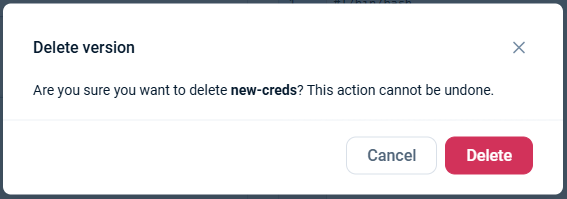
Click the trash icon to delete a version. Confirmation is required.
Constraints:
- The active version cannot be deleted — restore or save a new version first to change which version is active.
- The last remaining version cannot be deleted — a workflow must always have at least one version. To remove a workflow entirely, delete the workflow itself from the Workflows list.
Deleting a version is irreversible.
When the version limit is reached
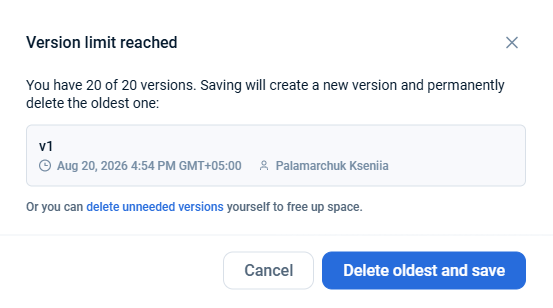
When you save or restore a workflow that already holds 20 versions, emma opens the Version limit reached dialog. It names the oldest version that would go and offers Delete oldest and save — confirm it and the operation proceeds. Cancel stops the operation: nothing is saved and no version is removed. To free up a slot without giving up the oldest version, delete the versions you no longer need yourself, then repeat the operation.
Last updated on 20 Aug 2026