
Workflow instance
Overview
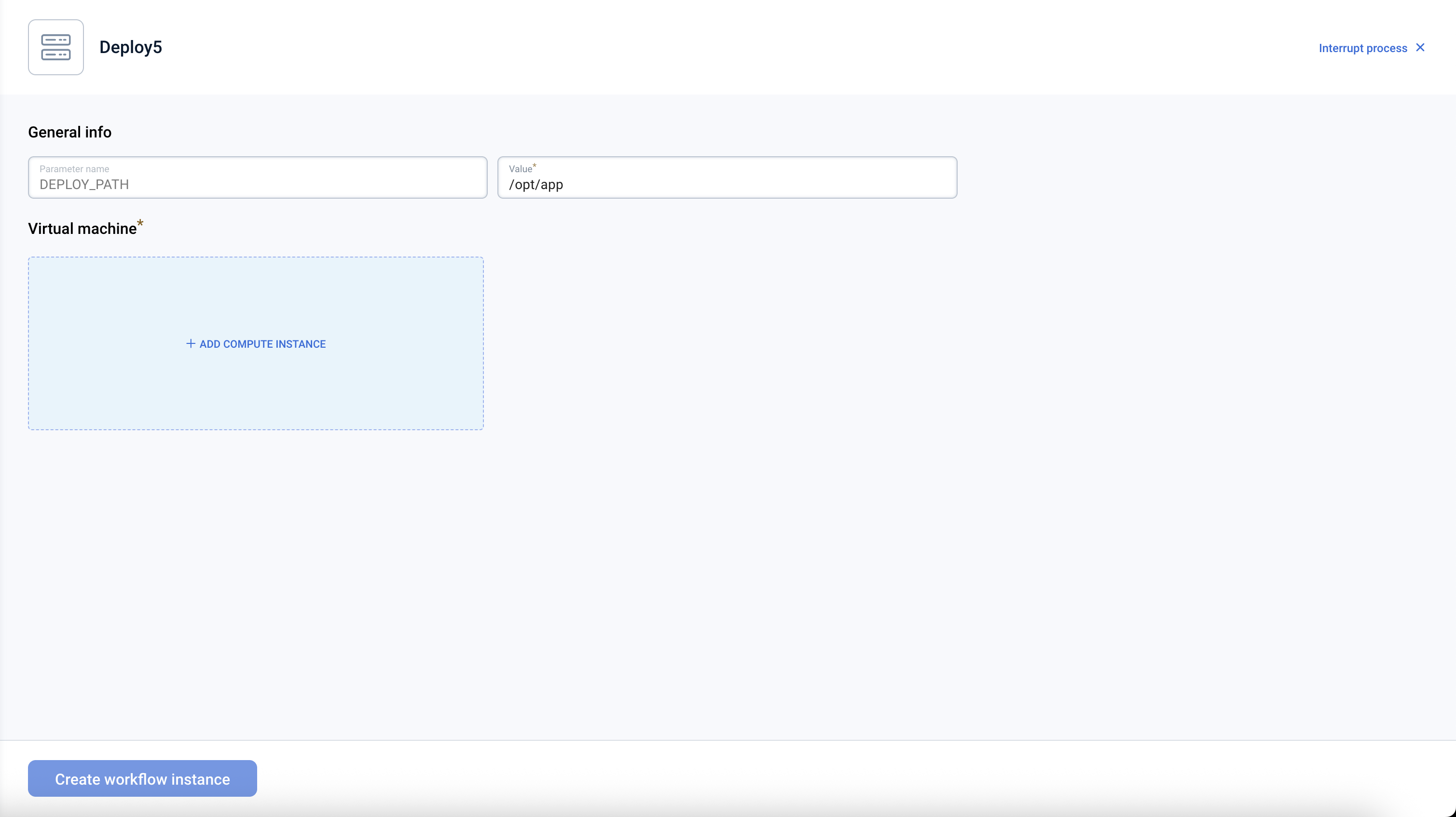
This page shows options to configure and deploy a workflow, including parameter values and instance configuration.
Information on this page
- Workflow Name — The name of the workflow being deployed
- Parameters section — List of parameters defined in the workflow:Parameters with default values are pre-filled (can be modified) Required parameters without default values must be filled in before deployment Optional parameters can be left empty
- Instance Configuration — Opens the appropriate creation wizard to configure compute resources: either the Virtual Machine wizard or the Spot Instance wizard.
After resource configuration is set, displays CPU, RAM, Storage, and estimated price.

Actions you can perform on this page
- Add Compute Instance — Opens the VM creation page to configure CPU, RAM, storage, network, security groups, and SSH keys
- Add Spot Instance — Opens the spot creation page to configure CPU, RAM, storage, network, security groups, and SSH keys
- Create workflow instance — Button to start the workflow deployment; becomes active after VM is configured and all required parameters are filled
OpenClaw installation
OpenClaw is an open-source personal AI assistant that runs on your own devices. It connects to messaging channels (Telegram, WhatsApp, Slack, Discord, and more) through a WebSocket-based gateway. The assistant uses Claude Sonnet as the AI brain via the Anthropic API.
What You Get Out of the Box
- Claude Sonnet 4 as the AI brain (via Anthropic API)
- Telegram channel configured and ready
- Conversation memory and knowledge management
- Multi-channel support (add WhatsApp, Slack, Discord later)
- Auto-language detection (responds in whatever language you write)
- Extensible with skills and tools
Cost Estimate
| Component | Cost | Notes |
| VM (2 vCPU, 4GB) | ~€26/month | GCORE Amsterdam pricing |
| Claude Sonnet API | ~$0.03/message | At ~20 messages/day = ~$18/month |
| Total | ~$45/month | For moderate daily use |
Deployment Steps
Step 1: Create Telegram Bot
Create a new bot via @BotFather in Telegram.
- Open Telegram, search for @BotFather
- Send /newbot
- Choose a display name (e.g. OpenClaw Assistant)
- Choose a username ending in _bot (e.g. my_openclaw_bot)
- Copy the token that looks like: 1234567890:AAH...
⚠️ Keep your bot token secret. Anyone with this token can control your bot.
Step 2: Get Your Chat ID
The bot needs your chat ID to know who to talk to.
- Open your new bot in Telegram and send it /start
- Open this URL in your browser (replace TOKEN with your bot token):
https://api.telegram.org/bot<TOKEN>/getUpdates
- Find your chat ID in the JSON response: "chat":{"id":123456789,...}
- Copy the numeric ID (e.g. 123456789)
Step 3: Get Anthropic API Key
Sign up at console.anthropic.com and create an API key.
Go to console.anthropic.com
- Navigate to API Keys section
- Click Create Key, copy the key starting with sk-ant-...
- Add credits to your account ($5 minimum recommended)
Deploy an Instance
- Go to Workflows, find OpenClaw AI Assistant, click Create Instance
- Choose a VM (vCPU 2+, Memory 4GB+, Storage 16GB+)
- Fill in OPENCLAW_TG_TOKEN, OPENCLAW_ANTHROPIC_KEY, OPENCLAW_CHAT_ID
- Click Create workflow instance and wait 3–5 minutes
- Check Telegram — your bot should greet you!
Start Chatting
Your bot is live. Just type any question in Telegram.
Try: ask anything in natural language, send /status for bot stats, or /help for available commands.
Deployment Script Reference
The script installs OpenClaw from npm, configures Telegram and Anthropic, and starts the service. Here is what it does step by step.
Execution Steps
The script runs as root on a fresh Ubuntu VM and executes 6 steps in sequence. If any step fails, the script aborts (set -euo pipefail).
| Step | Name | What It Does |
| 1 | System deps + Node.js | Installs curl, ca-certificates, gnupg; adds NodeSource repo; installs Node.js 22 |
| 2 | Create user | Creates system user openclaw with home /opt/openclaw; sets chmod 700 for security |
| 3 | Install OpenClaw | Runs npm install -g openclaw@latest — installs the official OpenClaw package from npm |
| 4 | Configure | Creates ~/.openclaw/openclaw.json with Telegram bot token, Anthropic API key, chat ID, bot name, and model |
| 5 | Install daemon | Runs openclaw onboard --install-daemon; falls back to manual systemd service if onboard fails |
| 6 | Health check | Waits 5 seconds, verifies service is active; prints VM IP and connection details |
Running the Script Manually
If emma.ms deployment failed or you want to run the script on your own Ubuntu VM, copy the script into a text editor(VS Code, Sublime, Notepad++, etc.) and save it as a file with a .sh extension(e.g., openclaw-vanilla.sh)
export OPENCLAW_TG_TOKEN="your-telegram-token" export OPENCLAW_ANTHROPIC_KEY="sk-ant-..." export OPENCLAW_CHAT_ID="123456789" export OPENCLAW_BOT_NAME="Kesha" export OPENCLAW_USER_NAME="YourName" chmod +x openclaw-vanilla.sh && sudo -E ./openclaw-vanilla.sh
The -E flag preserves environment variables when running with sudo.
After Deployment: SSH & Configuration
Once the VM is running, connect via SSH to customize your assistant.
Connecting via SSH
ssh -i <path to ssh key> <username>@<VM_IP>
Find your VM IP in the emma.ms dashboard under your instance details.
Key Files
| Path | Description |
/opt/openclaw/.openclaw/openclaw.json | OpenClaw configuration (tokens, model, channels) |
/usr/lib/node_modules/openclaw/ | OpenClaw installation directory (npm global) |
journalctl -u openclaw | Application logs (systemd journal) |
Useful Commands
| Command | What It Does |
journalctl -u openclaw -f | Follow bot logs in real-time |
sudo systemctl restart openclaw | Restart bot (after config changes) |
sudo systemctl status openclaw | Check if bot is running |
openclaw config edit | Edit configuration interactively |
openclaw --version | Check installed OpenClaw version |
npm update -g openclaw | Update OpenClaw to latest version |
Troubleshooting
Bot didn’t send a message
- Check that OPENCLAW_CHAT_ID is correct (numbers only)
- Make sure you sent /start to the bot before deploying
- SSH in and check logs: journalctl -u openclaw --no-pager -n 50
Bot says API key is invalid
- Verify the Anthropic key at console.anthropic.com → API Keys
- Check that you have credits on your Anthropic account
- Verify config: cat /opt/openclaw/.openclaw/openclaw.json
emma.ms shows Error in callback
This is a known emma.ms platform issue. The VM may still have been created successfully.
- Check the emma.ms dashboard for your VM and its IP address
- SSH in and check: openclaw --version (if installed, the script ran)
- If not installed, run the script manually via SSH
Security Notes
- OpenClaw runs as a dedicated system user (openclaw), not root
- Config file is chmod 600 — only the openclaw user can read it
- Rotate your Telegram bot token if it was ever exposed
- Rotate your Anthropic API key periodically at console.anthropic.com
Last updated on 1 Aug 2026