
Nebius setup guide
Prepare a Nebius periodic billing export and the read-only Object Storage access key emma needs to import your Nebius costs.
Overview
This guide explains how to prepare your Nebius tenant so that emma can access your billing data, and what credentials to provide during the connection setup.
emma reads your billing data from an Object Storage bucket you control — it never accesses your workloads or infrastructure.
Before you start
You need:
- Membership in a group with the
adminrole in your Nebius tenant (e.g. the defaultadminsgroup) — to create the billing export and the service account - The Nebius CLI, installed and signed in to your tenant — to create the access key in Step 3
Step 1 — Create a periodic billing export
The export delivers your billing data to an Object Storage bucket in FOCUS format and updates it every hour.
- Open the Nebius web console → Billing → Export → Periodic export tab.
- Click Create export.
- Fill in:
- Start month → the first month of billing data to export
- Project → the project that hosts the bucket. The project's region is shown next to its name (e.g. eu-north1)
- Object Storage bucket → an existing bucket or a new one
- Bucket prefix → optional folder path inside the bucket (e.g. /billing/export)
- Click Create export.
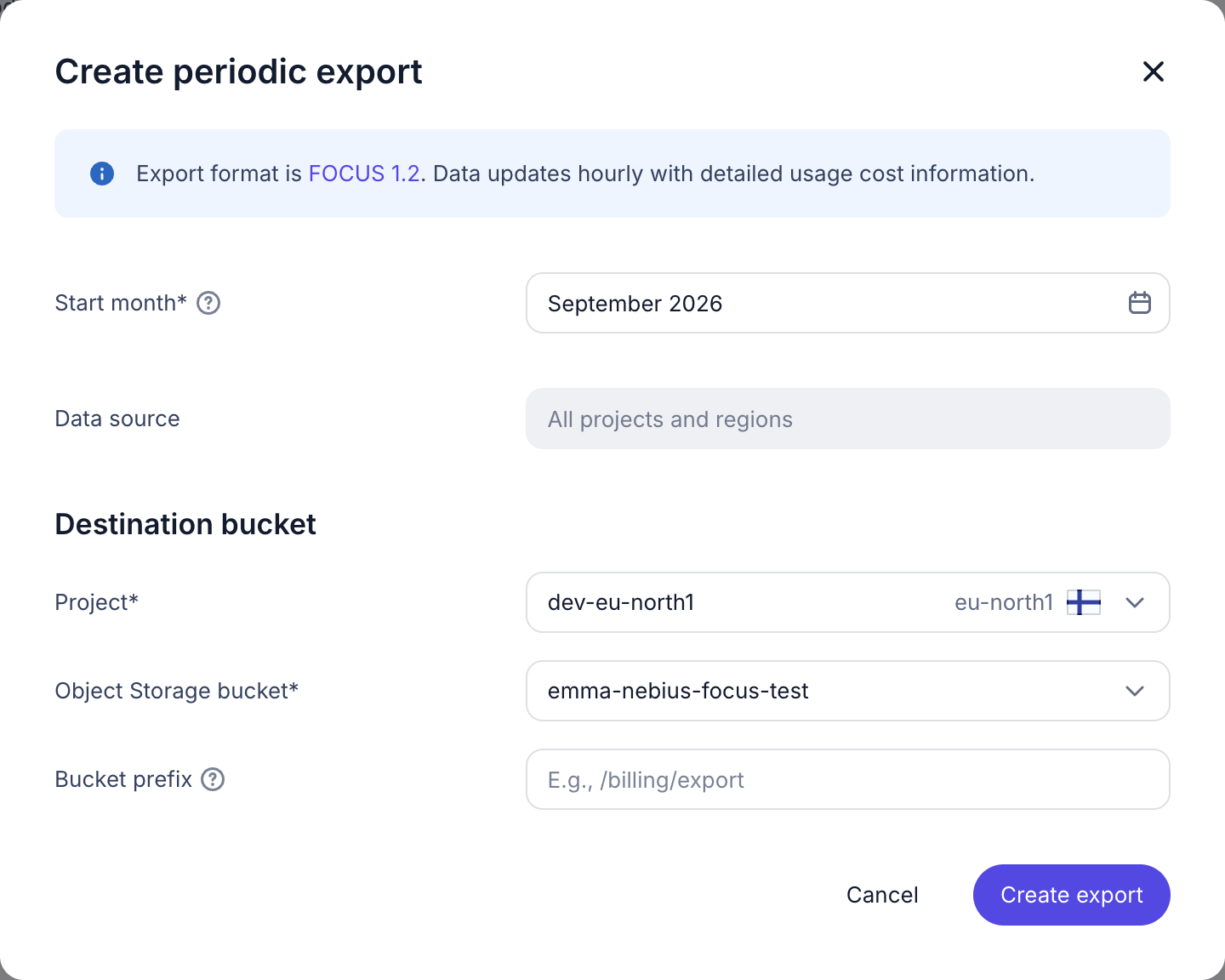
One export covers all projects and regions of your tenant. You can have only one active periodic export per contract — to create a new one, delete the existing export first.
Save the region, bucket name and bucket prefix — you will need them later.
Step 2 — Create a service account
This account will be used by emma to read the export bucket.
- Open Administration → IAM → Service accounts tab.
- Click Create resource → Service account.

- Enter a name (e.g. emma-billing-reader), select the project and click Create and continue.
- On the Service accounts tab, open the context menu (…) of the new account → Add to group.
- Select the
viewersgroup, or a custom group with at least thestorage.viewerrole on the bucket.
Save the service account ID (e.g. serviceaccount-e00…) — you will need it in Step 3. You can copy it from the service account list.
Step 3 — Create an access key
Nebius issues Object Storage access keys through the CLI.
- Create the key for the service account from Step 2:
nebius iam v2 access-key create \
  --account-service-account-id <service_account_id> \
  --description emma-billing \
  --format jsonpath='{.metadata.id}'
The command returns the ID of the new key.
- Get the key values:
nebius iam v2 access-key get --id <access_key_id> --format json- Copy two values from the output:
status.aws_access_key_id— the Access Key ID (starts withNAKI)status.secret— the Secret Access Key
Store the secret access key securely.
What to enter in emma
| Field | Value |
|---|---|
| Access Key ID | Copied from Step 3 |
| Secret Access Key | Copied from Step 3 |
| Object Storage bucket name | Bucket name from Step 1 |
| Path prefix | Bucket prefix from Step 1. Leave empty if you did not set one |
| Region | Region of the bucket's project from Step 1 (e.g. eu-north1) |
The bucket and its region are also shown on the Periodic export tab, in the Destination bucket column: project (region)/bucket.

What you should know
- Figures for recent days can change. Nebius rewrites the current month's export every hour. emma imports the latest version every day, so recent figures in your dashboards may change.
- History starts at the export's start month. emma imports billing data back to the backfill start date, but only for the months the export contains.
- No tags. Nebius does not include resource tags in its export, so Nebius costs have no tags in emma.
- Where Nebius costs appear. Expense analysis, Cost breakdown, Resource distribution, Budgets, and Data export. Nebius costs are not yet used by Allocation optimizer and Advisor.
Last updated on 27 Oct 2026